What a Hosting Control Panel Does and Why It Matters When You Buy
A hosting control panel is the dashboard you manage your site from. See what it does, how panel choice affects your daily work, and what to check before buying.
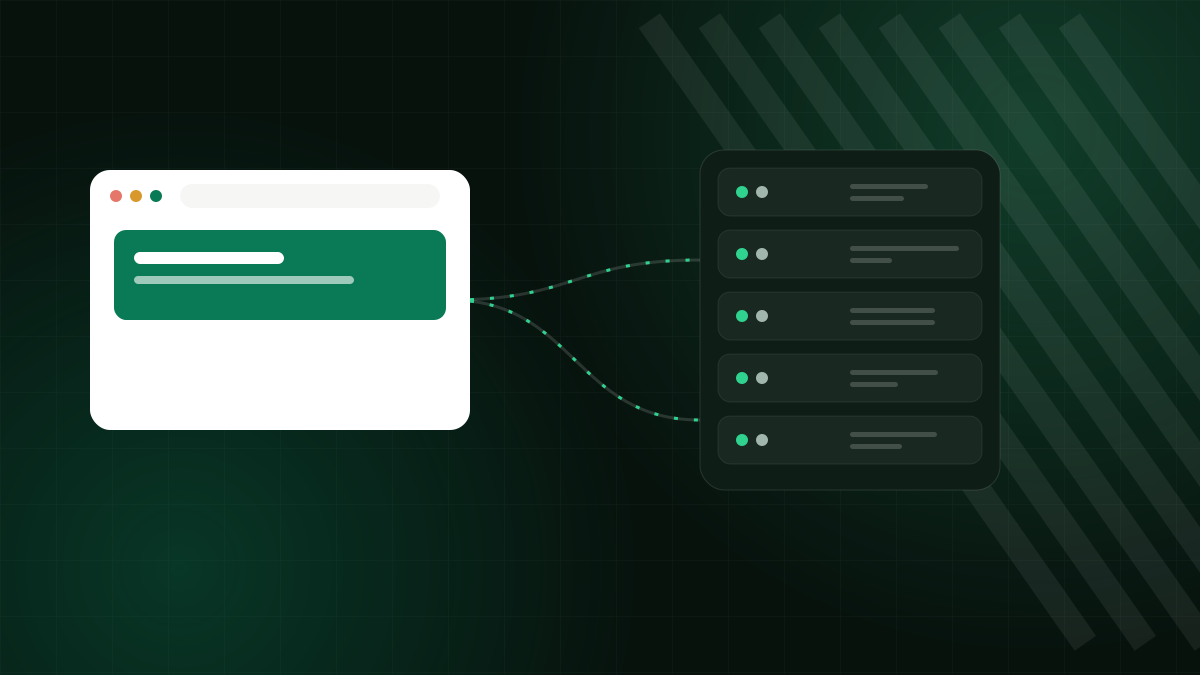
Every hosting plan hides a lot of server software behind a simple interface: web server, database engine, mail server, DNS, certificate tools, firewall. The control panel is that interface. It decides how easily you can create an email address, restore a backup or add a second website, so it is one of the features that affects your daily experience most. Yet it is rarely compared when people shop for hosting.
What a control panel actually does
A control panel is a web application that talks to the server software on your behalf. Instead of editing configuration files over SSH, you click buttons and fill in forms. Typical functions include:
- Websites and domains: add domains, subdomains and aliases, and choose the PHP version each site uses.
- Files: a file manager for uploads, plus FTP or SFTP accounts for tools like desktop clients.
- Databases: create MySQL or MariaDB databases and users, with a web tool such as phpMyAdmin.
- Email: create mailboxes, aliases, forwards and webmail access.
- DNS: edit records such as A, CNAME, MX and TXT.
- SSL/TLS: issue and renew certificates, and switch on HTTPS redirects.
- Backups: schedule and restore them.
- Statistics and logs: disk usage, bandwidth, access and error logs.
- Security: firewall rules, password protection for directories and malware scanning, depending on the plan.
Why panel choice affects you
Think about the tasks you will do in the next year: add a mailbox for a new employee, install a certificate for a subdomain, check why a form stopped sending, restore a file you deleted. In a clear panel each is a few clicks. In a clumsy one, each becomes a support ticket. If you manage several sites for clients, speed of routine tasks multiplies.
The panel also shapes your options. Some include built-in tools for WordPress management, staging copies, Git deployment and security hardening. Others offer only the basics.
Common panels compared
| Option | What to know |
|---|---|
| Plesk | Widely used on Linux and Windows servers; a modern interface with extensions for WordPress, Git and security. Included in every Zebra Hosting plan. |
| cPanel | Very widespread on shared hosting and familiar to many freelancers; a similar set of core functions. |
| Custom panels | Written by the provider. Can be clean and simple, but you learn something that works only with that host, and moving later means relearning. |
| No panel (unmanaged server) | Maximum control and zero convenience: everything via command line or configuration management. |
No panel is objectively best. The better question is whether you can do your regular tasks without help and whether the panel is maintained and kept secure. If your first host used a different panel, expect a short learning curve, not a barrier.
What to check before you buy
- Is there a demo or documentation? A provider that publishes guides, such as our knowledge base, expects you to use the panel.
- Can customers manage backups themselves? Self-service restore is a major time saver.
- Does it manage email and DNS in the same place? One interface for the whole domain avoids confusion.
- Can you give limited access to others? Designers, developers and clients should have their own logins with limited scope.
- Is it kept up to date? Panel vulnerabilities are an attractive target for attackers, and the provider is responsible for updates on managed plans.
The panel and your security
A control panel is a powerful tool, so protect it. Use a unique, long password and enable two-factor authentication if offered. Do not share your main login; create separate users. Remove access for people who no longer work with you. A compromised panel account gives an attacker everything the account owns: files, databases and email.
Do you need a panel at all?
If you are comfortable with the Linux command line and run a custom stack on a VPS, you may prefer to go without. Panels add some overhead, and some developers prefer configuration they control completely. For almost everyone else, particularly small businesses and agencies, a good panel saves hours and prevents mistakes. A middle option is a VPS with a panel installed, which gives you root access when you want it and a graphical interface when you do not; see our VPS plans.
Switching panels later
Your data is not locked to a panel. Websites are files and databases, email is mailboxes, and DNS is records; all can move to a new environment. Migration between panels is routine, and a competent host will do it for you. The main thing to prepare is a list of what you have: domains, mailboxes, databases, cron jobs, and any custom PHP settings.
A short test drive checklist
If you can try a panel before committing, or watch a walkthrough, run through five tasks: create an email address and find the webmail login; add a subdomain with HTTPS; change the PHP version for one site; create a database and a user; find and restore a backup. If any of these feels confusing or hidden, expect the same frustration every time you need it. If all five take minutes, the panel will earn its place in your routine. Pay attention to wording as well: labels in plain language, sensible defaults and warnings before destructive actions are signs of a well-designed interface.
The panel on Zebra Hosting
Every Zebra Hosting plan includes Plesk, so what you learn applies from a small shared plan to a VPS. If you want to see what is covered before ordering, browse the knowledge base or ask our team, who answer in 17 languages.